Emergency Room Simulator Controller Support on PC
Configure gamepads for Emergency Room Simulator on Steam and Steam Deck.
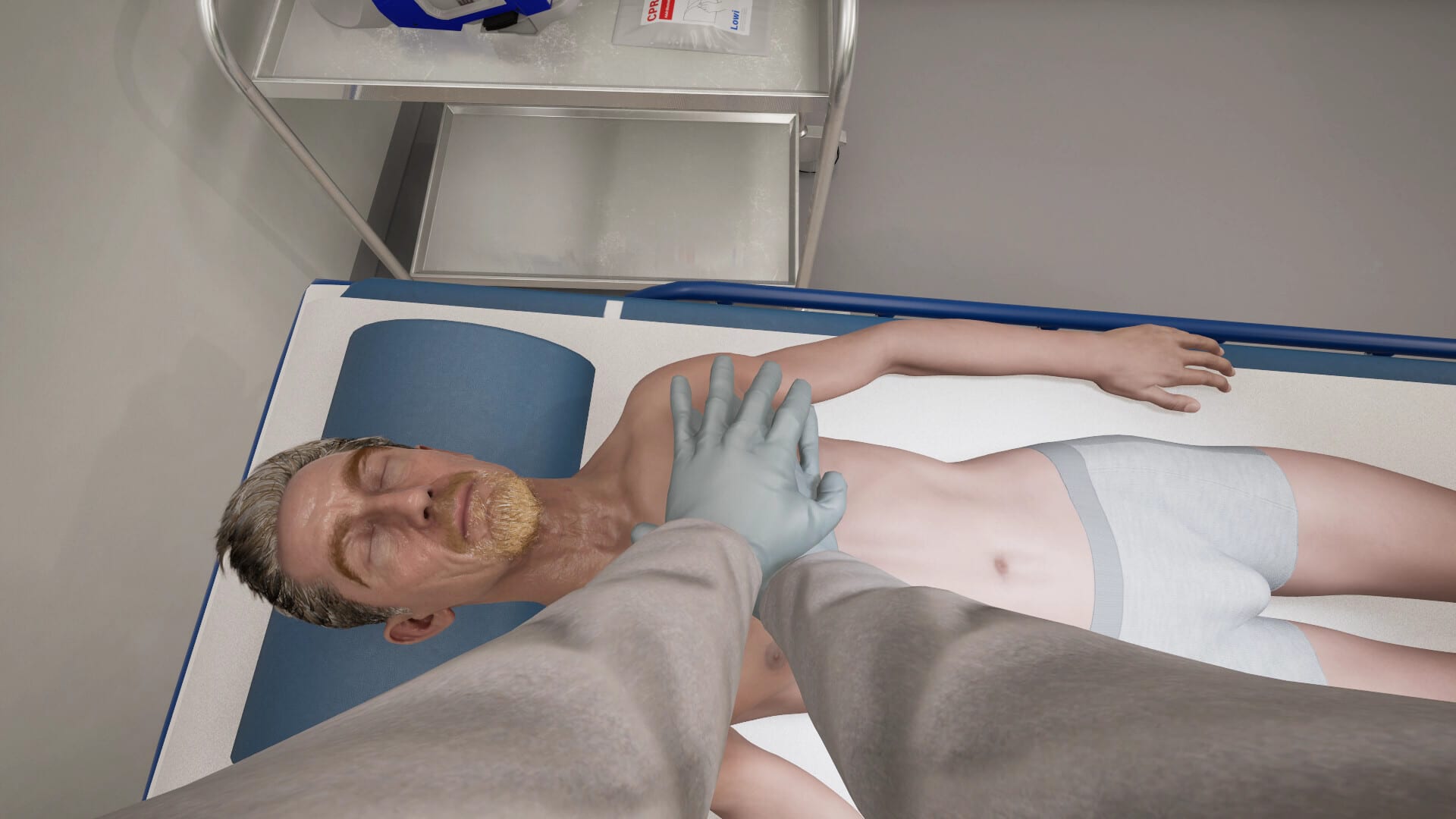
Steam lists Full controller support for Emergency Room Simulator on Windows — a strong signal that Caipirinha Games expects gamepad players on PC, Steam Deck, and living-room setups. Controller support is not an afterthought; it is a first-class input path worth configuring before your first code blue.
This guide covers hardware compatibility, Steam Input profiles, and gameplay situations where gamepads excel or struggle compared to mouse-driven UI in the PC controls guide.
Supported controllers (expected)
Full support typically includes:
- Xbox One / Series controllers (native XInput)
- PlayStation DualSense and DualShock via Steam Input
- Switch Pro Controller via Steam Input
- Steam Deck built-in controls
Verify glyph prompts at launch — some sims swap A/B between Nintendo and Xbox styles until patched.
Steam Input baseline profile
Before August 13, 2026:
- Open Steam → Emergency Room Simulator → Controller
- Enable Steam Input if prompted
- Choose Gamepad with trackpad mouse template if fine aiming is needed for procedures
- Set gyro off initially until sensitivity is tuned
Save a per-game profile named “ERS Medical” so global configs do not break minigames.
When controllers help
- Couch play on large displays
- Steam Deck travel sessions
- Players with mouse discomfort accessibility needs
- Rhythm-sensitive compression minigames if triggers map cleanly
When to keep a mouse nearby
- Dense chart typing or free-text notes if supported
- Rapid lab order grids with tiny hitboxes
- Stream overlay management
Hybrid setup — controller in hand, mouse on side table — is valid for hardcore sim fans.
Sensitivity and dead zones
Medical sims punish accidental stick drift during procedure QTEs:
- Raise dead zones slightly on older pads
- Lower look sensitivity to prevent motion sickness in 3D departments
- Map interact to a shoulder button to avoid mis-presses on face buttons during stress
Steam Deck specifics
Deck players should:
- Cap FPS at 40/60 for stable frame times (see system requirements)
- Use community layouts after launch if official Deck verified badge appears
- Lower in-game resolution before reducing UI scale
Console parity
DualSense features (adaptive triggers, haptics) may appear on PS5 first. Read console controls for platform-exclusive feedback.
Accessibility
Remap holds to toggles if CPR requires sustained trigger pressure — Steam Input allows toggle modes for players with stamina limitations. Enable subtitle sizes for briefing audio if mixed with controller rumble cues.
Testing checklist before launch
- Navigate main menu without mouse
- Complete hypothetical interact loop (examine → order → treat)
- Reach pause/options during timed prompt practice
- Confirm rumble does not drown alarm audio (shift prep)
Update checklist with real scenarios post-release.
Gyro, trackpad, and experimental profiles
Steam Input allows gyro-assisted aiming for fine cursor movement during suture minigames — start with low sensitivity and disable if motion sickness appears. Trackpad-as-mouse profiles help Steam Deck players in desktop mode when a mouse is unavailable. Community layouts may appear after launch on Steam forums linked from Official links; verify author reputation before importing configs that remap critical emergency actions.
Firmware and wireless reliability
Wireless controllers are fine for menu navigation but consider wired USB during learning-heavy first weeks — battery dips mid-CPR prompt are frustrating. Update controller firmware through Xbox Accessories app or PS5 settings before August 13.
Related pages
- PC controls
- Emergency procedures — timed inputs
- Controls hub
- Official links — Steam store for updates
Frequently Asked Questions
Quick answers to the most common questions.
Is Steam Deck supported?
Steam lists Windows PC support with full controller support, which typically includes Deck compatibility. Verify after launch.
Do I need Steam Input?
Recommended for non-Xbox pads and advanced remapping.
Are PlayStation glyphs shown on PC?
Depends on developer implementation. Steam Input can force Xbox or PlayStation icons.
Can I play entirely with controller?
Likely yes for core gameplay; keep mouse optional for UI-heavy edge cases until confirmed.