Emergency Room Simulator PC Controls
Keyboard and mouse interaction guide for the Steam version on Windows.
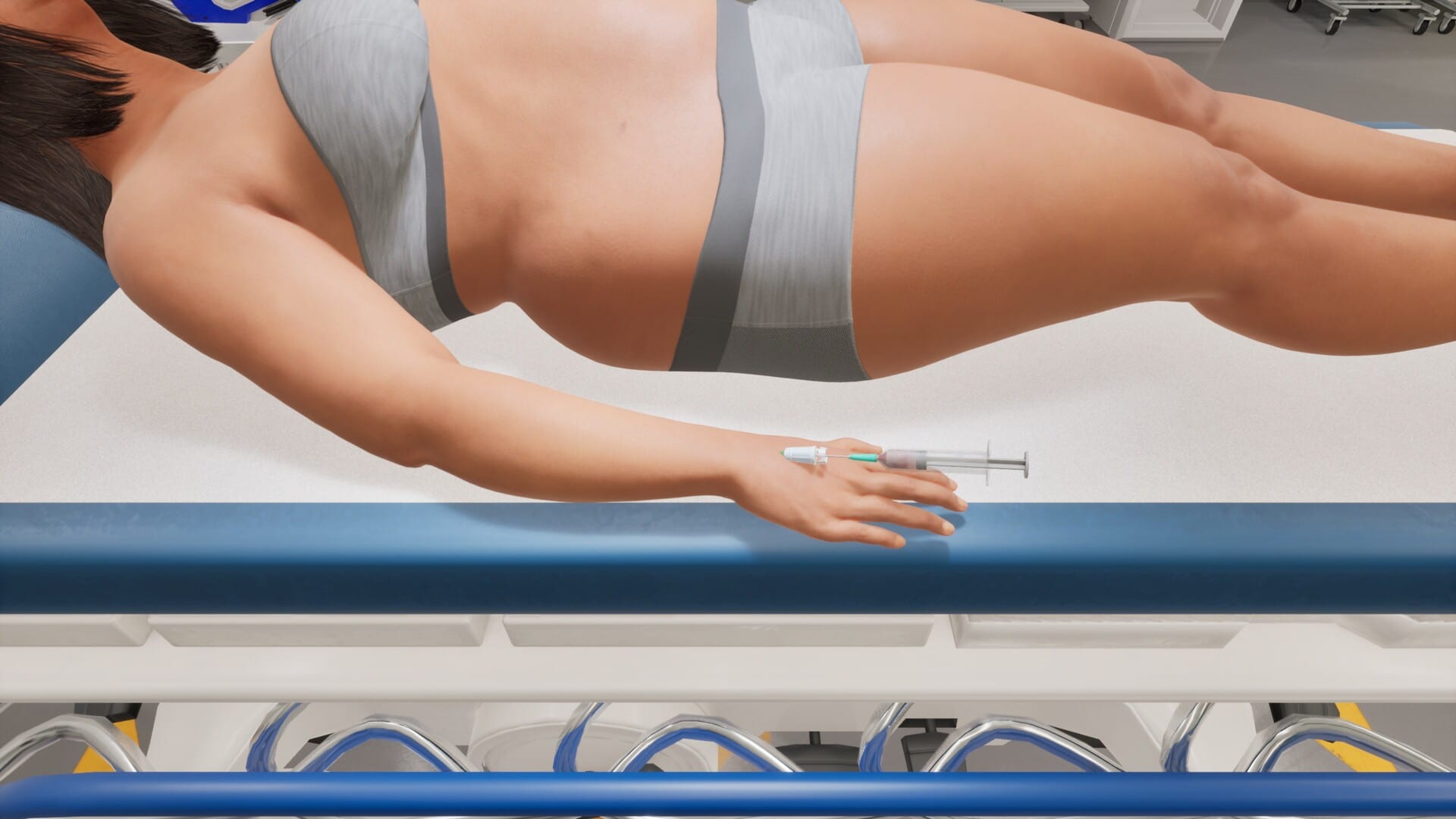
Emergency Room Simulator launches on Steam for Windows with full controller support, but most simulation players still default to keyboard and mouse for precise menu navigation, rapid chart entries, and procedure minigames. Until Caipirinha Games publishes an official binding diagram, this PC controls guide maps expected action categories to sensible default layouts used in comparable medical and job sims — update the tables after day-one access confirms real bindings.
Read this alongside controller support if you switch devices mid-shift, and system requirements if input lag stems from hardware rather than settings.
Core interaction philosophy
The Steam page describes clicking through exams, diagnostic orders, treatments, and emergency interventions. Expect:
- Point-and-click on patients, equipment, and UI panels
- Context prompts when hovering interactable objects
- Modal windows for charting, labs, and imaging review
- Timed prompts during CPR and other crises
Low mouse sensitivity and stable FPS matter as much as key choice — stutter turns precise sutures into failures.
Recommended action categories
| Category | Expected actions | Suggested keys (placeholder) |
|---|---|---|
| Movement / camera | Walk department, rotate view | WASD, mouse look if 3D hub |
| Interact | Examine, pick up tools | Left mouse / E |
| Cancel / back | Close menus safely | Esc / right mouse |
| Chart | Open patient file | Tab or C |
| Orders | Lab/imaging screen | O or dedicated UI button |
| Quick vitals | Re-check monitor | R |
| Sprint (if any) | Trauma bay traversal | Shift |
Replace placeholders once in-game remapping ships; screenshot the final menu for your setup.
Mouse-specific tips
- Click discipline — misclicks during medication prompts may be irreversible; pause cursor movement until dialogs confirm
- UI scale — increase interface scale in Steam launch options if text is tiny at 1440p
- Pointer speed — lower acceleration for steady suture lines
Keyboard shortcuts to watch for at launch
Scan options menus for:
- Push-to-talk or NPC dialogue advance
- Photo mode (streamers)
- Accessibility sticky keys compatibility
- Photo documentation of wounds if feature exists
Document confirmed shortcuts here after release in Updates.
Steam Input overlay
Even on keyboard-primary setups, enable Steam overlay for guides and browser fallback to this wiki mid-shift. Disable overlay hotkeys that conflict with in-game binds.
PC vs Steam Deck
Steam Deck players may prefer gamepad profiles even on PC hardware. If playing portable, read controller support for gyro and trackpad templates.
Prepare hands before emergencies
Run a five-minute drill daily:
- Open chart → order ECG → close chart (muscle memory)
- Snap to crash cart hotkey if assigned
- Practice CPR rhythm on a metronome at 100–120 bpm
Pair drills with emergency procedures theory.
Accessibility on keyboard and mouse
Emergency Room Simulator may ship PC accessibility toggles such as hold-to-click, larger cursor targets, or sticky keys compatibility. Enable these in the options menu before your first code rather than mid-emergency. If text entry in the patient chart supports keyboard typing, consider a compact keyboard on a side tray for stream layouts while keeping the mouse on the primary desk.
Windows mouse settings deserve a quick pass: disable “Enhance pointer precision” for consistent procedure lines, set polling rate to 1000 Hz on gaming mice if your CPU can spare the overhead, and verify no third-party macro tools intercept clicks meant for medication confirmation dialogs.
Multi-monitor and ultrawide setups
Ultrawide players should verify UI panels remain readable at native aspect ratios — some sims anchor charts to corners that stretch on 21:9 displays. Test borderless windowed mode if exclusive fullscreen causes alt-tab delays during wiki lookups. Secondary monitors are ideal for this wiki or Steam guides; keep primary focus on vitals widgets that may not appear on display two.
Related pages
- Console controls — if you also play on couch setups via PC Big Picture
- First-shift guide — when to use each action class
- Shift prep checklist — audio and display tuning
- Controls hub — overview
Frequently Asked Questions
Quick answers to the most common questions.
Are key bindings confirmed?
Not yet. This guide lists expected categories until official bindings are published post-launch.
Can I remap keys?
Most PC sims allow remapping in options. Confirm on August 13, 2026 and update your personal notes.
Is mouse required?
No — full controller support exists, but mouse excels at UI-heavy tasks.
Where are console layouts?
See [console controls](/controls/console-controls/) for PS5 and Xbox.